
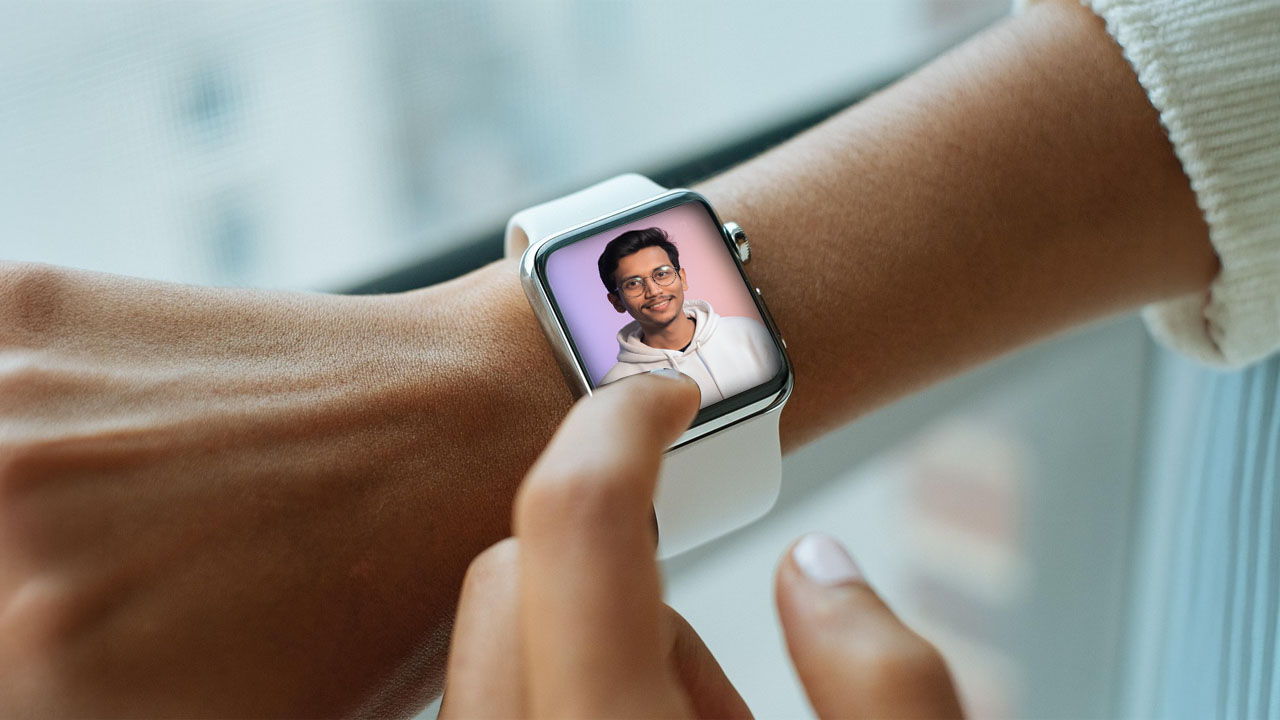
How to Set Custom Wallpaper in Smartwatch
Want to make your smartwatch look more personal? You can now connect almost any smartwatch to your phone and set your own photo — or a picture of someone you love — as the watch face. It’s easier than you think, and it makes your watch look way more unique.
Before you start, make sure your smartwatch supports Bluetooth and has a companion app from the brand. You’ll need that app to transfer photos to your watch. Here’s a simple step-by-step guide to connect your watch and change the wallpaper.
Watch on YouTube:
How to add custom wallpaper in Smartwatch
Step 1: Turn on Bluetooth
Open your smartwatch and go to Settings. Find the Bluetooth option and turn it on.
Step 2: Scan the QR code
Your smartwatch should have a QR code somewhere in the settings menu. Open it, then use a QR code scanner app on your phone to scan it.
Step 3: Download the companion app
Scanning the code will point you to the right app for your watch brand. This works for popular models like the T800 Ultra, Noise smartwatch, HiWatch Pro, HK8 Pro Max Ultra, FitPro, DT8 Ultra, T900 Ultra, and W68 Ultra+, among others. Download and install the app on your phone.
Step 4: Log in and connect your watch
Open the app and log in with a Gmail account. Then check that your watch is properly connected to the app.
Step 5: Find the Watch Face settings
Inside the app, look for a menu called Watch Face, Dial, Face Gallery, or Device — the exact name depends on the brand. Inside that menu, look for something like Custom Photo, Photo Watch Face, or Album. That’s where you can set your own picture as the watch face.
How to Set Custom Photo Wallpaper on Smartwatch
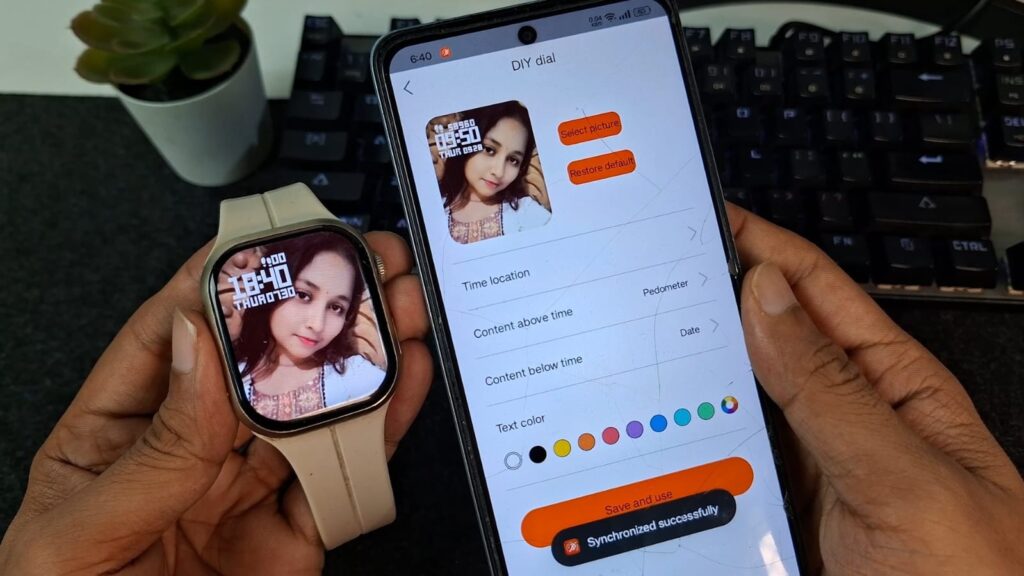
Step 6: Pick and set your photo
Choose a photo from your phone’s gallery. You can crop, zoom, or reposition it so it fits nicely on the watch screen. Once it looks good, tap Apply, Save, Sync, or Set. Within a few seconds, the photo will transfer to your watch and become your new watch face.
FAQ:
1. Can I set my own photo as a smartwatch wallpaper?
Yes, many smartwatches allow you to use your own photo as a custom wallpaper.
2. Which app is used to change a smartwatch wallpaper?
It depends on the watch model. Common apps include T800 Ultra, Noise smartwatch, Wearfit Pro, Da Fit, and FitPro.
3. Why can’t I change my smartwatch wallpaper?
Your watch may not support custom wallpapers, or the companion app may need an update.
4. Does a custom wallpaper affect battery life?
Static wallpapers have little impact, but animated watch faces may use more battery.
5. Do all smartwatches support custom wallpapers?
No. Support depends on the smartwatch brand and model.
Conclusion
Now you know how to set a custom wallpaper in your smartwatch in 2026. Whether you want to use your favorite photo or a stylish watch face, the process is quick and easy with the right companion app. Simply follow the steps in this guide to personalize your smartwatch in just a few minutes. If you have any issues, update your smartwatch app and make sure your device supports custom wallpapers.
